
Using the wireless communications function
The wireless communications function is enabled.
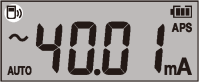
 flashes: communicating
appears: wireless function on
disappears: wireless function off
-
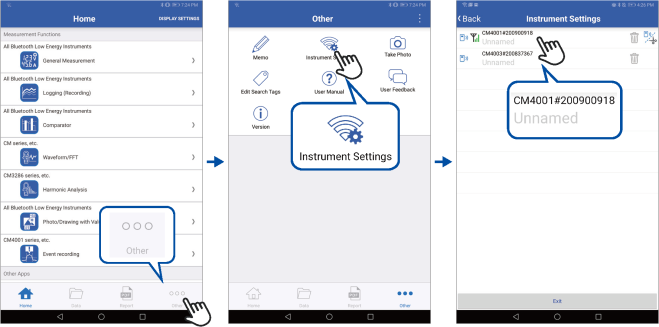
When GENNECT Cross is started for the first time (when there is no registered instrument), the Instrument Settings screen appears.
-
When the instrument is placed near your mobile device, its connection is registered automatically on the Instrument Settings screen of GENNECT Cross (up to eight instruments).
-
Wait for 5 to 30 s until the connection of the instrument is registered after turning on the instrument. If the connection of the instrument is not registered after 1 minute has elapsed, restart GENNECT Cross and the instrument.
|
|
General measurement |
|
|
Waveform graph, FFT |
|
|
Photo drawing function |
|
|
Event logging |
|
|
Logging |
|
|
Comparator |
|
|
Harmonic analysis |
|
|
Firmware updating of the instrument |


For detailed information, visit the GENNECT Cross website.
Event Logging Function (EVENT)
The event logging function logs the data when measured values exceed a desired threshold value, which can be set with GENNECT Cross. For details, see the Help function in GENNECT Cross.
The number of logged events can be checked using the instrument.
Hold down the and  keys simultaneously for 1 s or longer.
The number of logged events is displayed.
-
The instrument may not measure events with a duration time of less than 200 ms accurately, failing to detect events.
-
The instrument can record up to 99 events. The event recording terminates when the recorded events reach 99 in number.
-
When you start another event logging session, the instrument deletes previously logged data.